
TouchFLO 3D
And now let's take a look at the heart of the system, TouchFLO 3D. The name is a bit misleading, as the GUI has no 3D, while the previous edition was in fact 3D, we should just remember the rotatable cube. Even in spite of this fact I think that it is much easier to use, it's just a bit slow. The system itself is a Today plugin, but it's prepared for everything, we can't select another plugin during its use. Before talking about usability, let's watch the demo video we made – I'm sorry for the quality, it had been recorded with a Samsung G810.
I think you can see that changing between menu items takes 1-2 seconds, which is quite frustrating. When changing the graphics don't stutter so I had the feeling that it's not slow because of lack of resources, but it's done this way intentionally. We have three methods of changing between menu items. The first is to tap the appropriate icon, the second is to stroke the center of the screen with our finger horizontally, while the third is to keep our finger on the row that has the icon we want to activate – this latter one can be seen at he beginning of the video, I think this is the fastest browsing method.

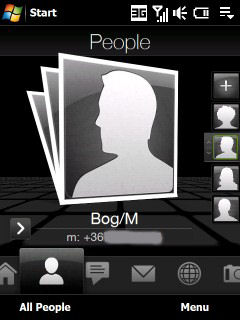
The first tab is a kind of standby screen, we can customize this with wallpapers. This is where the current time is shown in large, with the missed calls and the shortcut of the calendar below. The second tab is a dialing screen, which displays the pictures of our favorite contacts: we can browse between these by moving our finger vertically. We can access the phonebook by pressing the lower left software key (All People), where we can browse between the first letters just like in iPhone. Of course the scrolling routine is present, and Diamond has the best implementation of this of all the Windows Mobile-based devices, it's almost as good as in iPhone, but we can see a bit of delay compared to that.

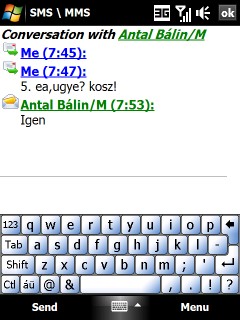
The third and fourth men items are for messaging, the first shows SMS messages, while the second stores emails, in case we have properly configured Outlook. To tell the truth I had the most problems with the text messaging part. Moving our finger up or down we can scroll the messages, the animation is very spectacular, but we have to wait at least 5 seconds when tapping on a message for Outlook to start, which is very much. SMS messages are displayed like a chat conversation, which is great, but this part is really so slow that it affects usability.

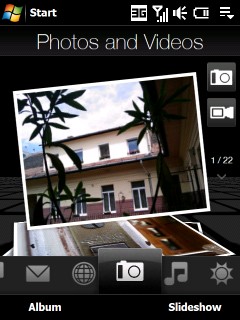
After these comes the Internet tab, where we can start the Opera Mobile 9.5 web browser and the shell software used for watching YouTube videos; we'll describe these a bit later. The sixth tab is the picture viewer, where we can browse pictures, and upon selecting one of them the dedicated image viewer application starts up. This is already known from Touch Slide, we can zoom and browse with our finger, but as a new feature the software rotates the picture according to the handset's orientation thanks to the gyroscope. The camera's software is also accessed from this tab.

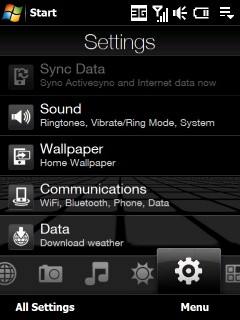
The next tab is dedicated to the music player, we'll talk about this one later on. After this we can find the system settings tab.

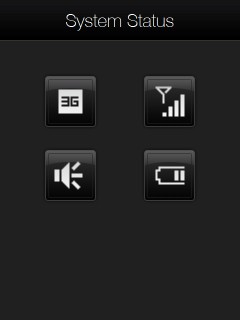
At the end of the list we can find the shortcuts for applications. Still, this is not all what TouchFLO 3D has to offer. Tapping the upper tray we get the picture you can see above, and here we can set all the stuff here with our finger; sound volume for example.

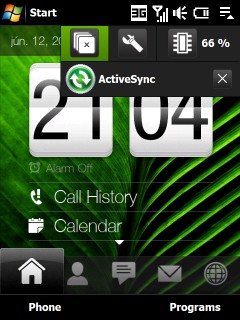
A task manager is also included in the package, which has a primary advantage of really closing applications after pressing X (if we set it to do so), and tapping the icon in the top right corner we get a list of currently running applications, which can be closed easily this way. The Start menu has also been adapted to use with a finger, the rows are large enough. We can set any function we want to the call reject key too, for example we can enable keypad locking at long press, or we can make the whole PDA to shut up (a.k.a. mute it).


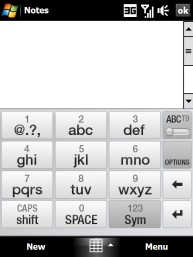
The virtual keyboard has also been redesigned, it has three different views, you can see all of them on the picture above. I have used the first, full QWERTY layout, it is really comfortable to use, the only problem with it is that it covers quite a lot of the screen. It is quite like the one on the iPhones, we can correct mispresses, as the system enters the character only after taking our finger off the screen. There is a dictionary with word completion in English. There is a “semi-QWERTY” and a phone keypad view, these surely come in handy when used in a vehicle. The designers have also payed attention to make switching between the views simple, as the list that displays the different views is also easy to handle with a finger.
A cikk még nem ért véget, kérlek, lapozz!









